Part 7 — How to view email logs in Hustly email admin panel.
Hustly Email Service: Complete Guide Series
You are reading Part 7 of our Hustly email service guide series. Choose another guide below at any time.
| Guide | Topic |
|---|---|
| Part 1 | How to Enable Your Hustly Email Inbox Service |
| Part 2 | How to Configure DNS Records for Your Hustly Email Inbox Service |
| Part 3 | How to Create and Manage Your Hustly Email Inboxes |
| Part 4 | How to configure Email Clients to access your Hustly Email. |
| Part 5 | Advanced Email Options – Login to your Hustly email admin panel. |
| Part 6 | How to set up Email Forwarding with your Hustly Email service. |
| Part 7 | How to view email logs in Hustly email admin panel. (current guide) |
| Part 8 | How to migrate and import your existing emails into your Hustly email service |
Email logs can help you investigate why a message was not delivered or why sending failed. Your Hustly Email Admin Panel is based on DirectAdmin/MXroute-style mail management, and may expose logs for individual mailboxes.
Before you start
First sign in to the Email Admin Panel. If you are troubleshooting a newly added domain, also check the email DNS records guide.
Step 1: Open the E-mail Accounts section
In the Email Admin Panel, open E-mail Manager → E-mail Accounts and select the relevant domain or mailbox.
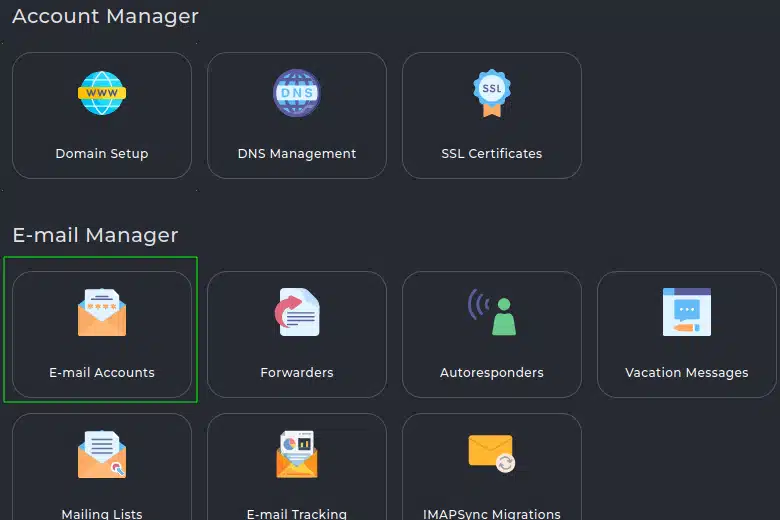
Step 2: Inspect incoming or outgoing logs
If the SMTP Log column is available for the account, select In to inspect incoming activity or Out to inspect outgoing activity. These views can help you trace accepted, rejected or otherwise unsuccessful messages.
Step 3: Check sending activity and usage
Some DirectAdmin configurations expose E-mail Usage from the Email Accounts area, showing mail sent by accounts and related usage information. Availability, filters and the amount of history depend on your email panel permissions and server configuration.
What the results can tell you
- Accepted or delivered to another mail server: the receiving provider may still filter the message into junk or apply additional checks.
- Rejected: inspect the reported error or rejection reason, including authentication and recipient issues.
- Deferred: delivery may be retried; check the reason and try again later.
- No matching entry: you may be looking at the wrong domain/account or outside the available log window, or the message may not have reached this mail server.
Panel differences: If your Hustly panel does not show an SMTP Log column, E-mail Usage or the expected date filters, the feature may be unavailable for your account. Contact Hustly support with the sending address, receiving address, approximate time and any bounce/error message. Do not send mailbox passwords.
Additional references
See the DirectAdmin Evolution email logs walkthrough and DirectAdmin E-mail Usage documentation.
If you are also using email forwarding, review that configuration before opening a support request.
Continue with the next guide
Previous: How to set up Email Forwarding with your Hustly Email service.
Next: How to migrate and import your existing emails into your Hustly email service
Moving existing mailboxes? Read our email migration guide.
We hope you found this guide useful. If you need assistance setting up your Hustly email service, please create a support ticket in your Hustly account.